Saturday, February 15, 2014


Scope of work Project Planner

Job Scope:
  • Normally, Project Planner is very useful during the Meeting. He/She will answer all the question about the progress, and ready with firm answer. It is high recommended that Project Planner reporting directly to Project Director or Project Manager to ensure all the critical information about project status is ‘genuinely’ convey to the management.
  • To establish the Work breakdown Structure (WBS) and maintain the structure along the project.
  • To establish the Baseline Schedule, this is the agreed time line for everybody to follow.
  • To identify the sequence of work/construction methodologies apply for the project.
  • To monitor the work progress & put in record either in Primavera or MS Project.

Experience:
  • I believe the good Project Planner should started from site (if refer to construction). This is where we can see the methodology of the construction been applied. Furthermore, it will provide the statistic about the productivity rate such as:
1) Piling Works: How many number the boring + caging + concreting activity  can be done in 7 days?
2) Super Structure: How many floors that contractor can construct in 14 days? How many formwork, rebar & concrete volume  need to be pour everyday? How many sets of formwork required?
3) Architecture Works: How many masonry we need to complete brickwork in 1 day? How many palette of brick we required at site?Same goes for plastering, painting & finishing works.

Tuesday, May 28, 2013

Primavera P6 Planning & Scheduling offers in-person Primavera P6 classes for one or two days – at your location or one of our classrooms. Our P6 software training programs can be delivered at any time on short notice, including weekdays and weekends. No other P6 training programs are this flexible! In just 8 hours we can teach you how to create a new schedule with layouts and filters, update the schedule, and run baseline comparisons. Need more instruction? Our very-intensive 2-day program adds advanced update techniques, schedule analysis, cost and resource-loading, and resource leveling skills. For individuals who are new to scheduling we offer an introduction to planning and the CPM method of scheduling, and a more in-depth look at Primavera P6 in our 2-day program. .
No software required: all of our training programs include a trial copy of Primavera P6. We will even show you how to install the software!

Meet the instructor: all of our in-person training programs were designed by Mr Azlan Yahaya, a master scheduler and Primavera Subject Matter Expert with 20 years experience. He is one of the leading experts on CPM scheduling in the Malaysia and has testified extensively on scheduling and delays. You will learn Primavera P6 based on practical knowledge of scheduling. We are not just trainers!...

Primavera P6 Professional Version 8.3 Released

Oracle recently released Version 8.3 for both P6 Professional (PPM) and P6 Enterprise (EPPM). Today we will be discussing changes to P6 Professional.

Visualizer

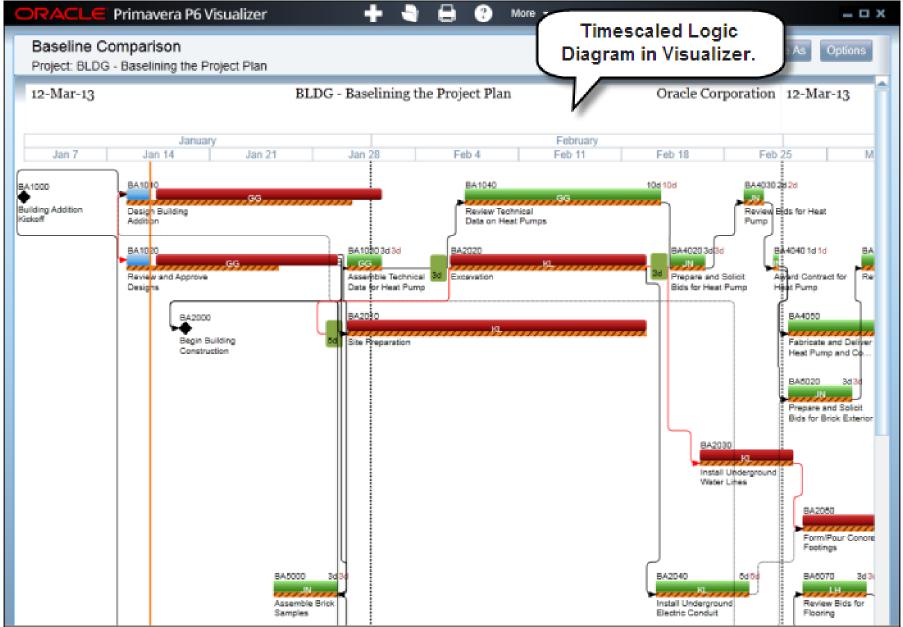
Visualizer is a new feature that supports graphical reporting via customizable Gantt charts and timescaled logic diagrams (TSLDs). The TSLD was initially introduced with Version 8.0 and is now replaced by Visualizer. One of the advantages of a TSLD is the ability to show more than one activity on the same line, which reduces the height of the logic diagram considerably.
In addition to the P6 Professional’s standard graphical features, Visualizer adds the following features:
  • Stack columns and use word wrapping in the Gantt chart
  • Use notebook topics or a list of steps as a bar label or as a field in the activity table
  • Apply various fonts to individual labels and fields
  • Color-code and apply different shapes for bars and endpoints
  • Draw bars on top of each other, for example, to show critical highlighting
Visualizer is a desktop application that can be launched either from within P6 Professional or from the computer’s start menu. It connects directly to the P6 database. This marks the first time users have been able to view project data without launching P6.
After launching Visualizer, users can choose to create or open a TSLD or Gantt chart. Users can also print and manage layouts from inside Visualizer. P6 Professional layouts or Visualizer layouts created by other users can even be imported.
The Gantt chart includes a grid and a bar chart. The grid displays activity information in a table format, similar to the Activity Table in P6 Professional. On the Chart & Grid tab in Layout Options, display the Gantt chart, the grid, or both.
The screen below shows an example of a TSLD in Visualizer with multiple bars per row and critical activities coded in red:
Visualizer TSLD

Discussion Feature

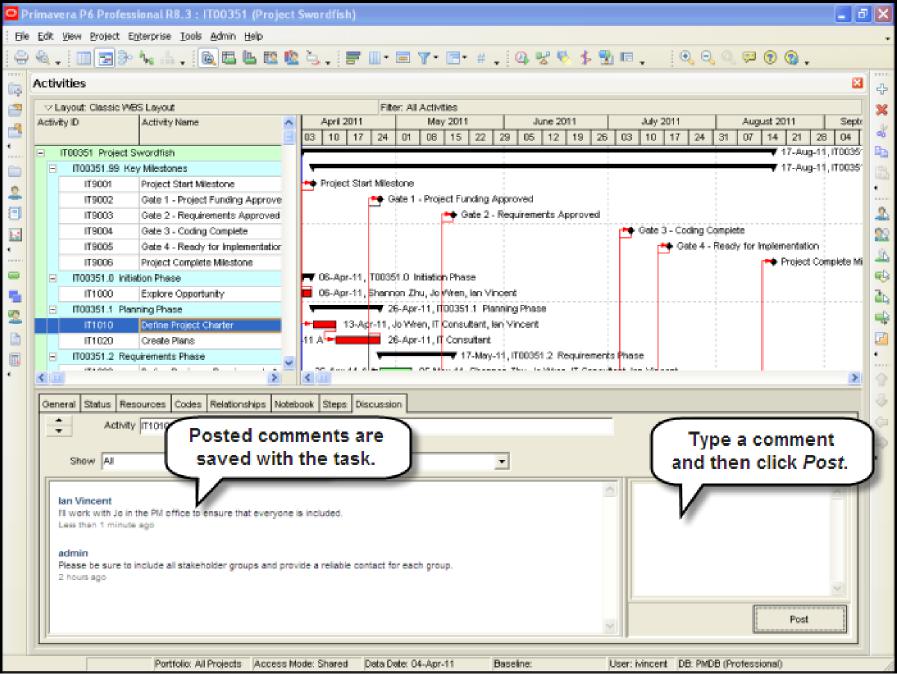
Previously we had the ability to track comments about activities using the Notebook tab in the Activity view. Version 8.3 adds a new Discussion feature that tracks these comments by team member. All comments are dated and labeled with the contributor’s name. Similar to Notebook comments, Discussions are stored electronically with the activities. This is a nice tool for encouraging dialogue and feedback on activities.
Also, we can now add a column called “Unread Comments” to the Activity Table to prompt team members to review the most recent Discussions. Notebook comments, by comparison, can only be shown as a label on an activity bar and do not appear in the Activity Table.
Visualizer Discussion Tool

XML Import/Export Enhancements

P6 Professional Version 8.3 provides a number of enhancements to its XML import/export functionality. Users can now exchange XML project files with previous versions of P6 Professional from Version 6.2 Service Pack 4 (SP4) onward. Also, all features supported by the P6 Professional XER format (constraining of external relationships during import, inclusion of Price/Unit in resource assignments, etc.) are supported in XML format as well.
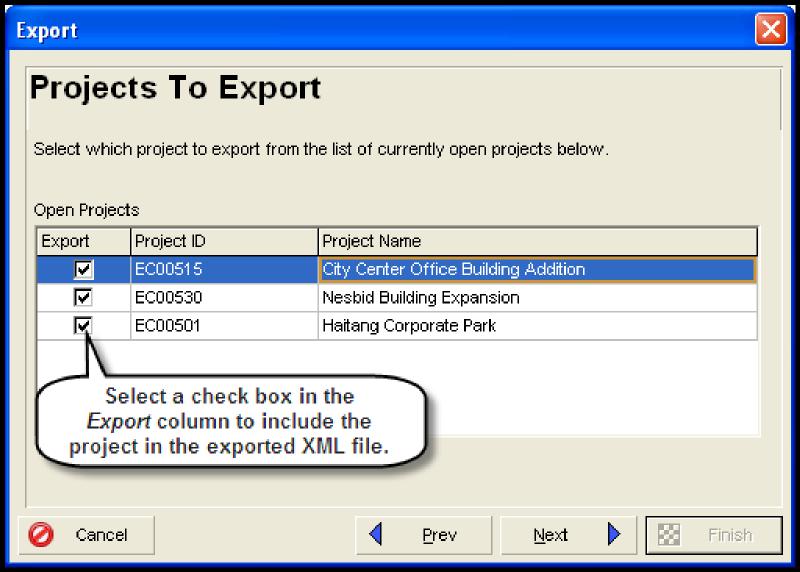
P6 Professional Version 8.3 also gives users the ability to import or export multiple projects simultaneously. When exporting multiple projects, the projects are combined into a single XML file. Importing multiple projects requires the projects to be contained in a single XML file.
Visualizer Export

Bottom Line – Worth an Upgrade?

Users who have a current support agreement with Oracle can upgrade to Version 8.3 for free. Otherwise, you will have to pay full price to get the newest version. Version 8.3 does have some nice enhancements but they are not worth buying a new license. The TSLD still does not show relationship lags – only the relationship types – despite several upgrades since it was first introduced. Users have been asking for this feature for quite a while. Of course, the Gantt chart does not show the lags either so we will have to wait until, perhaps, Version 8.4 is released.
In the meantime, we will be testing Version 8.3 for bugs. Versions 8.1 and 8.2 tend to crash more often than Version 7.0 (our favorite) so reliability is always a concern. The casual user of P6 would not miss the enhancements found in Versions 8.1 and 8.2 so it once again comes down to whether a free upgrade is available. Certainly, new users should consider Version 8.3 as there is no discount for buying older versions and Version 8.3 is backwards compatible with earlier versions of P6 Professional.


Tuesday, September 11, 2012

Project Planning and Scheduling using Microsoft Project


Project Planning and Scheduling using Microsoft Project
Rushing against time? Sound planning & scheduling of a project is the key to successful implementation. With computer tools like Microsoft Project, you can excel in project management. This highly practical course might be the one for you.
This course emphasizes the key elements of the project plan – the project work breakdown structure (WBS), project cost estimates and budgets, project schedules, and resource assignment tools. Participants will also learn techniques to set plan baseline, track and monitor project performance using Earned Value Management practices and prepare reports.
The Microsoft Project software covers in this course will enable you to develop and present your project plan, master the tools for managing schedules and resources effectively, identify critical paths and manage multiple projects with dependencies, track progress and costs and make real-time adjustments. The Collaboration Options of Microsoft Project allow companies to communicate and collaborate on projects internally within the organization and externally with their stakeholders. Together with the complementary use of Web Technology in planning, scheduling and controlling, companies can significantly improve their workgroup productivity and more efficiently access and analyze business information

Who should attend: Whether you are working as a human resource, strategic, middle or operational manager, taking this workshop will develop your skills in all aspects of successfully completing projects. It is suitable for anyone who has responsibility for coordinating projects, meeting goals and targets as part of their work.
• Project Managers, executive, administrators, supervisors and officers who are in need to grab a software tool to manage project effectively and increase productivity.
Two sessions of courses using the Microsoft Project will be carried out in a consecutive of 2 days:
Managing Projects with Microsoft Project – Standard
Managing Projects with Microsoft Project – Advance

First course: Managing Projects with Microsoft Project – Standard
Objective
This course is to provide the participants with a sound knowledge in project scheduling and monitoring. The use of critical path method (CPM) & PERT, control of project time and resources allocation techniques are actively dealt with. The emphasis of the course is on the practical use of Microsoft Project supported with 8hours devoted hands on practice sessions. Discussion will be centered on 8 main diversify industries.
Microsoft Project provides the power and flexibility to plan and track projects and meet your business needs. With the Collaboration option, team members can communicate and collaborate on projects across an organization and other stake holders. With the use of web technology in project planning, scheduling and controlling, the company can significantly improve their workgroup productivity and more efficiently access and analyze important business information. Participants will learn the software through practical exercises with one participant to a terminal hand on session.

Course Outline
Part A: The Project Scheduling Techniques

·         The three phases of project management
·         Project Scheduling Techniques – gantt chart, CPM and PERT, critical path analysis.
·         Gantt Chart and critical path
·         Activities time estimation
·         Critical path analysis
·         Assign resources and resource levelling
·         The probability of project completion on time
·         Normal and crash time relationship (project crashing)
·         Time-cost Trade-off and optimization
·         Practical exercises.

Part B: Microsoft Project: Basic features and functions

·         Entering and scheduling tasks
·         Working with calendars
·         Gantt Chart and Network Diagram (PERT CHART)
·         Set baseline
·         Assign resources and resource levelling
·         Tracking and monitoring of project
·         Printing of views and tables and producing status reports
·         Customized table
·         Collaboration and enabling workgroup features,
·         Customized table, producing status reports,
·         Practical exercise

Second course: Managing Projects with Microsoft Project – Advance Course objective:
This course is to provide the participants with advance techniques in project scheduling & monitoring using Microsoft Project . Microsoft Project provides the power and flexibility to plan and track projects and meet your business needs. The course is focusing in more advance functions and feature of the application; the participants will be expected to have some basic skill in Microsoft Project. Skills introduced in the basic course are reinforced and participants will then learn the new and more advance functions and features through practical exercises with one-to-one terminal hands on session.

Course Outline
After the basic skills are learned in the basic course, the following new and more advance functions and features are introduced:
Fine tuning the project plan and information
 Setting up the recurring tasks
·         Setting tasks constraints
·         Shifting tasks in projects
·         Use of elapse time, hr and day etc
·         Interrupting work on tasks
·         Define code for work breakdown structure (WBS), develop and use custom code
·         Customizing fields (columns) with formulas (create in cell formula like Microsoft Excel)
·         Assign material resources, measurement such as tons or kilometer etc.
·         Sorting, grouping and filtering project information
·         Tracking progress the project plan
·         Project Progress/Cost Monitoring
·         Controlling project cost using BCWS, BCWP and ACWP
·         Project monitoring using the Cost Variances (CV) and schedule variance (SV)
·         Advance customization of MS Project 2010.

      Price per person: RM 2,000.00  
      15% Discount for 5 participants above..

Tuesday, January 17, 2012

Primavera P6 syllabus 2013

Primavera P6 Training – Basic to Advance

DAY 1
1  Project Management Life Cycle
2  Navigation & Layout
3  Organization Breakdown Structure OBS
4  Enterprise Project Structure EPS
5  Work with Calendar
6  Create New Project
7  Funding Source
8  Assign Funding Source
9  Project Budget Log
10 Project Spending Plan
11 Work Breakdown Structure WBS
12 Develop Activity
13 Activity Steps
14 Work Product & Document
15 Develop Relationship
16 Scheduling
17 Timescale
18 Trace Logic
19 Driving Activity
20 Activity Network
21 Print Preview
22 Backup Work Programme without Resources
23 Filters
24 Activity Group & Sort
25 Creating Resources & Roles
26 Resource Code
27 Resource Group & Sort
28 Assigning Roles & Resources
29 Assigning Roles & Resources
30 Expenses – Non Resource Cost
31 Custom Layout – Column
32 Global Change
33 Replace Role with Resource Labor
34  Analysis – Resource Usage Spreadsheet
35  Analysis – Resource Usage Profile
36  Analysis – Resource Assignments
37  Make Amendment on Budgeted Units/Time

Day 2
38 Analysis – Activity Usage Spreadsheet
39 Analysis – Activity Usage Profile
40 Print Preview
41 Backup Work Programme with Resources
42 Summarize Project
43 Projects Inter Link
44 Export & Import Project
45 Create Project Baseline
46 Assign Project Baseline
47 Restore Project Baseline
48 Custom Layout – Column Baseline & Progress %
49 Custom Gantt Chart – Bar Baseline
50 Spotlight
51 List of Activities to be Update Using Filter
52 Progress Update as Schedule
53 Re-Scheduling with Progress Update
54 Backup Latest/Current Work Programme
55 Create Project Issues
56 Re-Scheduling without Progress Update
57 Analysis – Activity Usage Spreadsheet
58 Analysis – Activity Usage Profile (S-Curve Baseline vs Actual)
59 Analysis – Tracking
60 Project Code
61 Project User Define Fields
62 Fill Down
63 Project Group & Sort
64 Standard Reports
65 Custom Report (Report Wizard)
66 Claim Digger
67 Export & Import Layout
68 Create Project Portfolio
69 Work with Project Portfolio

No of Day : 2 Days Course
Time : 9.00am to 5.00pm
Break : Morning (10am-15 mins), Lunch (1pm-2pm) & Evening (3.30pm-15mins)
Fee : RM 2300.00

Thursday, November 3, 2011

Primavera P6


Primavera P6 Enterprise Project Portfolio Management is the most powerful, robust, and easy-to-use solution for globally prioritizing, planning, managing, and executing projects, programs, and portfolios. Primavera P6 Enterprise Project Portfolio Management is an integrated project portfolio management (PPM) solution comprising role-specific functionality to satisfy each team member's needs, responsibilities, and skills. It provides a single solution for managing projects of any size, adapts to various levels of complexities within a project, and intelligently scales to meet the needs of various roles, functions, or skill levels in your organization and on your project team

  • Plan, schedule, and control large-scale programs and individual projects
  • Select the right strategic mix of projects
  • Balance resource capacity
  • Allocate best resources and track progress
  • Monitor and visualize project performance versus. plan
  • Foster team collaboration
  • Integrate with financial management and human capital management systems